How to Edit a DOCX with AI in WordCraft Online
Upload an existing DOCX, make a clear request, check the preview, and download the result. Includes a verified example and troubleshooting.
Last updated: 2026-10-14
The short answer: At WordCraft Online, attach an existing DOCX under 6 MB, write the change you want, and submit it. The service processes the request with WordCraft document tools and returns a page preview plus an editable DOCX. Check the output before using it. A guest can use one document and up to 10 editing requests without signing in.
This is an independent AI workflow using WordCraft tools. If you are looking for the original WordCraft editor, read What is WordCraft? first.
Before you start
- Bring a DOCX, not a PDF or legacy
.docfile. The upload limit is 6 MB. - Write a specific request about the file you attach. The request field accepts up to 2,000 characters.
- Guest use is free for one DOCX and up to 10 requests on that document. There is currently no paid checkout.
- Your file is processed on our server. Relevant document text and the request go to our AI provider; see the privacy policy.
- Keep your original file. AI edits and DOCX round trips need human review, particularly for complex formatting.
Step by step
- Open the tool and choose Attach DOCX. Select the file you want to revise.
- In the request box, describe one change and what should stay the same. For example: “Fix grammar and clarity in this update, but keep its meaning.”
- Submit the request. When the workspace loads, read the reply and inspect the rendered page preview. You can ask a follow-up on the same document if the first result needs adjustment.
- Choose Download DOCX. Open that file in a word processor and inspect text, tables, images, styles, and page layout as relevant to your document.
Processing time depends on the file and request; this site does not promise a fixed completion time. The preview displays at most the first 30 pages, so use the downloaded DOCX to inspect longer files.
A real WordCraft Online example
On 2026-10-14, we ran this site's live tool with a short, one-page team update. This demonstrates one verified text edit; it does not establish compatibility with every DOCX feature.
Request: “Improve the grammar and clarity of this short team update while keeping its meaning.”
Before: “Our team have made good progress this month, but the report is not very clear. We did lots of things and the results was okay. The next steps needs a clearer plan.”
After, read from the downloaded DOCX: “Our team has made good progress this month; however, the report is not very clear. We completed a wide range of tasks, and the results were satisfactory. The next steps require a clearer plan.”
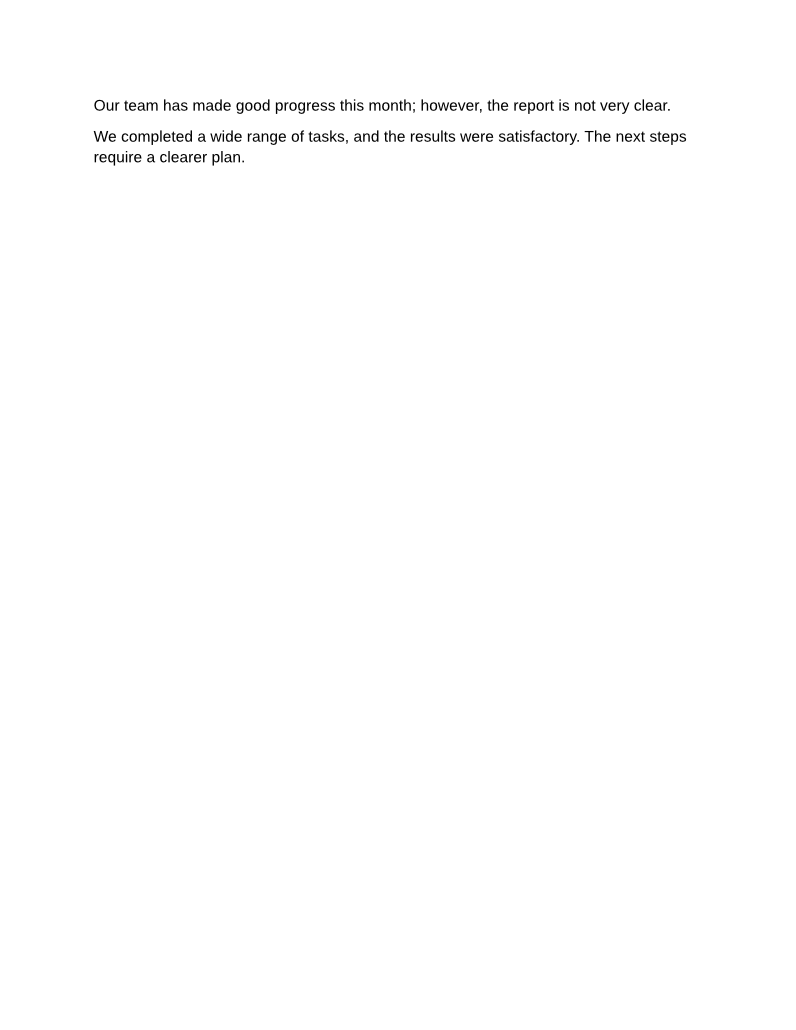
You can inspect the original sample DOCX and the edited DOCX. The image above is the actual page preview returned by this site for that result. The downloaded file was opened and its document text checked against the quoted “after” text.
Requests that give the tool a clearer task
- “Make the headings consistent, but do not change the body wording.”
- “Improve grammar in the introduction while keeping names, numbers, and meaning.”
- “Reorganize this update into a short summary and next steps; preserve the factual details.”
These are request ideas, not verified examples of successful output. Start with a copy of your file and inspect what actually changes. If you need to type or format directly with WordCraft's original controls, compare the online WordCraft options.
If something goes wrong
The file is rejected. Check that it is a nonempty .docx under 6 MB. Other formats are not accepted by this site.
The request fails. Read the error and retry with a simpler instruction. A failed guest request is designed to release its reserved quota, but confirm the remaining count shown by the tool.
The result changes more than intended. Ask a narrower follow-up on the same document, or return to your original copy. Review the downloaded file, not only the preview.
The preview omits later pages. Only the first 30 pages appear in the preview. Download and inspect the full DOCX.
The free guest limit is reached. Guest use is limited to one document and 10 requests. The tool shows the remaining request count. This site currently has no paid checkout or refund flow.
A prior document is unavailable. Document sessions normally expire about seven days after the last edit. Download work you want to keep. See the privacy policy for storage details.
When the result looks right, return to the tool with your own DOCX. If you need the original WordCraft app or a browser-only editing path, use the WordCraft online decision guide.